
How to Use Your Own Tablet or iPad as a POS System in NZ (2026 Guide)
Introduction: Don't Buy a New POS - Your iPad is Your Secret Weapon
That sinking feeling hits every time you look at the price of a traditional, all-in-one POS system. For a small New Zealand business, a multi-thousand dollar upfront investment in hardware feels like a huge risk. You look at the powerful iPad or Android tablet already sitting on your counter and think, "There has to be a smarter way."
You're right. The high cost and inflexibility of bundled POS packages are a major source of stress for owners of cafes, restaurants, and retail shops across NZ. You fear getting locked into expensive, proprietary hardware that will be obsolete in a few years, or choosing software that won't work with your existing gear or local EFTPOS provider.
This guide is your solution. We'll walk you through the 'Bring Your Own Device' (BYOD) model, a modern, affordable approach that turns the tablet you already own into the heart of your business operations. It's a strategy that aligns perfectly with the nationwide push for small businesses to adopt smarter digital tools, a movement supported by government initiatives like the Digital Boost programme.
What is a Tablet POS System and Why is it Perfect for Your NZ Business?
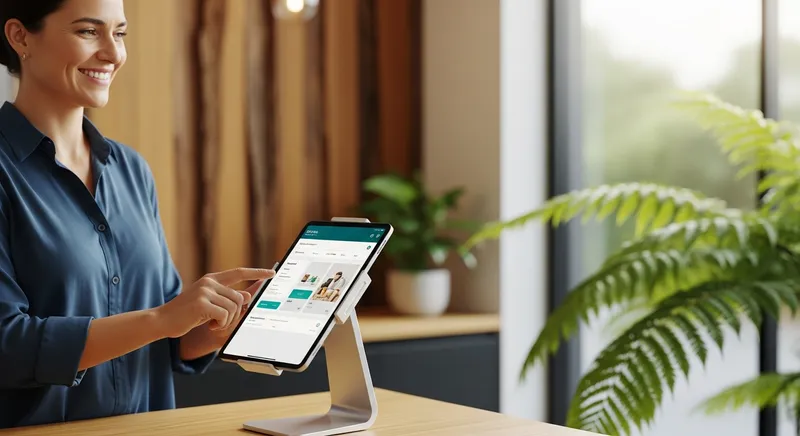
A tablet POS system is simply a combination of a consumer tablet (like an iPad or Samsung Galaxy Tab) and a powerful, cloud-based point-of-sale app. Instead of storing all your data on a single, bulky machine in your back office, everything from sales reports to inventory is stored securely in the cloud. This means you can access your business data from anywhere, at any time.
This move away from legacy hardware is a significant trend. As noted by industry experts, the evolution of POS has shifted dramatically towards flexible, cloud-based solutions that do more than just process sales. They have become the central nervous system for managing inventory, staff, and customer relationships.
For your NZ business, the benefits are immediate and substantial:
- Massive Cost Savings: Eliminate the need for thousands of dollars in proprietary hardware. You just pay a manageable monthly software subscription.
- Ultimate Flexibility: Take orders at the counter, at the table, or even at a weekend market. A tablet is portable and adaptable.
- Advanced Features: Gain access to powerful tools like real-time sales analytics, inventory management, customer loyalty programs, and online ordering integrations.
- Ease of Use: If you can use a smartphone, you can use a modern tablet POS. Staff training is faster and simpler.
Cost Comparison: Traditional vs. Tablet POS To see the financial benefit clearly, consider this typical breakdown:
- Traditional POS System: $3,000 - $7,000+ upfront for proprietary hardware, plus software and support fees.
- BYOD Tablet POS System: $0 for hardware (using your existing tablet) + an affordable monthly software plan (starting from around $24/month).
It's a smarter way to manage your operations, moving from a system that just takes money to an all-in-one POS that unifies your business.
Your 4-Item Checklist: What You Actually Need for a Tablet POS System
Getting started is less complicated than you think. Forget the complex diagrams and confusing sales pitches. Here is everything you actually need to build your own affordable POS system.
- Your Tablet: An Apple iPad or an Android tablet is the core of your setup. Most modern devices from the last 4-5 years will work perfectly.
- POS Software: This is the app you'll download onto your tablet. It's the 'brain' of the operation that manages your sales, products, and reporting. Look for software that goes beyond transactions; integrated features like loyalty programs and gift cards can increase repeat business significantly.
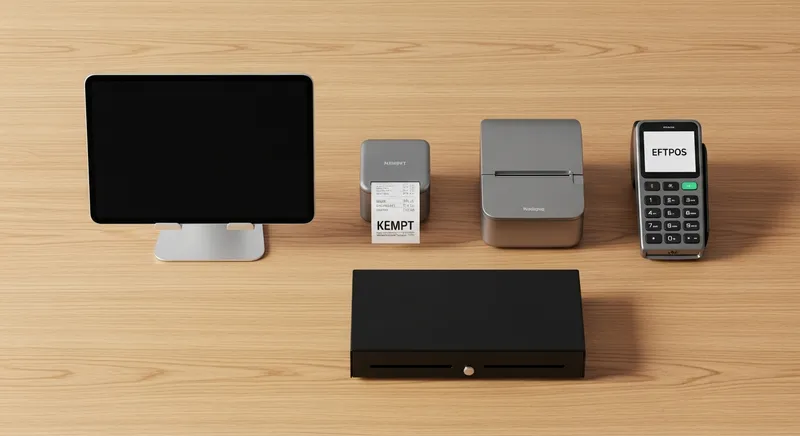
- Core Hardware: You'll need a few peripherals to handle transactions. This includes a receipt printer, a cash drawer (which connects to the printer), and your NZ EFTPOS terminal.
- A Reliable Internet Connection: Since the system is cloud-based, a stable WiFi connection is essential for processing payments and syncing your data securely.
That's it. With these four components, you have everything required to run a professional and efficient point-of-sale.
How to Turn Your Tablet into a POS System in 5 Actionable Steps
Ready to make the switch? Follow this step-by-step process to get your own tablet-based POS system up and running.
Step 1: Assess Your Existing Hardware Compatibility
Before you choose software, take stock of what you have. This 10-minute check will save you hours of headaches later.
- Action 1: Check Your Tablet. Go to
Settings > General > Abouton an iPad, orSettings > About Tableton Android. Note the 'Software Version' or 'OS Version'. Most POS apps require a recent version (e.g., iPadOS 15+ or Android 8+). - Action 2: Identify Your Printer. Look at the back of your receipt printer. What ports does it have? A square USB-B port is for older, direct connections. An Ethernet (network) port or built-in Bluetooth/WiFi are what you need for a modern tablet POS. As hardware experts at Star Micronics advise, network and Bluetooth printers offer the most flexibility.
- Action 3: Note Your EFTPOS Terminal. What model is your EFTPOS machine (e.g., a Verifone VX 820)? Knowing this will help you confirm if it can integrate with your chosen software.
If you find you need a new printer, our Ultimate NZ Buyer's Guide to Kitchen & Docket Printers can help you choose the right one.
Step 2: Choose the Right POS Software for NZ
Your software choice is the most critical decision. Look for a provider that is built for the New Zealand market.
- Action 1: Prioritise NZ-Specific Features. Does the software handle NZ GST correctly? Is it EFTPOS NZ certified? This official accreditation means it's trusted by over 50,000 NZ merchants and integrates seamlessly. According to industry guidance, seamless EFTPOS integration is a cornerstone of a modern retail payment setup. Also, consider an NZ-built provider for local, Wellington-based support that understands your business hours and challenges.
- Action 2: Start a Free Trial. Never commit to a subscription without testing. Sign up for a free trial (like Lazygrid's) and download the app onto your tablet. This lets you test the interface and confirm it runs smoothly on your device.
- Action 3: Check the Hardware Compatibility List. Before your trial ends, find the software provider's list of supported printers and EFTPOS terminals on their website. Confirm your existing hardware is on the list.
For more help on this, check our guide to choosing the best EFTPOS provider in NZ.
Step 3: Install the App and Configure Your Business Settings
Once you've chosen your software, it's time for the initial setup. This is where you customise the system for your business.
- Action 1: Download and Install. Go to the Apple App Store or Google Play Store on your tablet and download the POS app.
- Action 2: Run the Setup Wizard. Most modern apps will guide you through the basics: entering your business name, address, and NZBN. You'll also configure your GST settings here.
- Action 3: Load Your Products or Services. Begin adding your menu items, retail products, or services. Add prices, categories, and any variations (e.g., small, medium, large coffee).
Step 4: Connect Your Printer, Cash Drawer, and EFTPOS
Now you'll connect your hardware to the software, creating a fully functional sales counter.
- Action 1: Connect Your Printer. If it's a network printer, ensure it's connected to the same WiFi network as your tablet. The POS app should then automatically detect it. For a Bluetooth printer, pair it directly in your tablet's Bluetooth settings.
- Action 2: Connect Your Cash Drawer. The cash drawer typically plugs into the back of the receipt printer with a telephone-style (RJ11) cable. The printer then triggers the drawer to open.
- Action 3: Integrate Your EFTPOS Terminal. In the POS software settings, you'll find a section for 'Payment Terminals'. Select your provider and follow the on-screen steps to pair the terminal with your POS. This integration is vital for the future of payments, as outlined in strategic reports by Payments NZ.
Step 5: Run a Complete Test Transaction
This is the final and most important step. Before you go live, process a complete sale to ensure everything is working together.
- Action 1: Process a Sale. Ring up a low-cost item. Select 'Pay by EFTPOS'. The amount should automatically appear on your EFTPOS terminal. Tap a card to pay. Confirm that the sale is marked as paid in the POS, a receipt prints correctly, and the cash drawer opens.
- Action 2: Test Advanced Features. This is also a good time to test the loyalty program. Create a test customer account, attach them to the sale, and see how points accrue automatically. Then, void the transaction to reverse it.
Beyond Basic Sales: Advanced Features to Look For
As you look towards 2026, your POS should do more than just take payments. Modern systems are growth engines. Look for these integrated features to get the most value:
- Customer Loyalty & Gift Cards: Build a loyal customer base with a built-in points program and sell digital or physical gift cards to boost cash flow.
- Customer Management (CRM): Track customer visit history and preferences to provide personalized service that keeps them coming back.
- Multi-Location Management: If you plan to expand, choose a system that allows you to manage all your stores from a single dashboard.
- Self-Service Kiosks: In busy cafes or quick-service restaurants, allowing customers to order and pay themselves can dramatically reduce queues and free up staff.
Putting It Into Practice: Example Setups for Your Business
The beauty of a tablet POS is its flexibility. Here's how it looks for different types of NZ businesses:
Cafe POS on an iPad: A cafe in Wellington uses an iPad at the counter and a self-service kiosk for quick ordering. Orders are sent wirelessly to a kitchen display system (KDS) in the kitchen, which has reduced ticket times by 30% and eliminated paper waste during the morning rush.
Food Truck POS on Android: A food truck at Auckland's night markets uses a rugged Android tablet. Its portability is key, and the POS software's offline mode ensures they can still take orders and cash payments even if the local cell signal is weak. They use a small, battery-powered Bluetooth printer for receipts.
Beauty Salon/Massage Shop on Tablet: A massage shop in Queenstown uses a tablet POS that fully integrates with their online booking system. When a client checks in, their appointment details and history are already on the screen. At checkout, they can easily book their next appointment and pay for a multi-session package, all in one seamless transaction.
Conclusion: The Smart, Flexible Future of Your Business is in Your Hands
Switching to a point-of-sale system no longer requires a huge financial leap of faith. By leveraging the powerful tablet you likely already own, you can build an affordable, modern, and flexible POS system that rivals the most expensive setups on the market. This BYOD approach gives you full control, saves you thousands of dollars, and equips you with the advanced tools you need to grow your business in 2026 and beyond.
You can streamline your operations, make data-driven decisions, and deliver a better experience for your customers. The power to transform your business is already in your hands. If you run a service-based business, exploring how integrated solutions work is key; our review of the best online booking systems shows how they can reduce no-shows by up to 50%.
Ready to see how it works on your own device? Test Lazygrid POS with a free trial and discover how simple it is to get started.
Frequently Asked Questions
Can I really use any iPad or Android tablet?
Not quite any tablet, but most modern ones will work perfectly. The most important factor is the device's Operating System (OS). To ensure security and access to the latest features, POS software providers require a recent OS version. As a general rule, look for compatibility with iPadOS 15 or newer for iPads, and Android 8.0 or newer for Android tablets. The best practice is to always check the specific software's official compatibility list on their website before subscribing.
Do I need to buy a new receipt printer?
Probably not. If you have an existing receipt printer, the key is its connection type. Modern tablet POS systems connect to printers via your network (Ethernet/WiFi) or Bluetooth. If your printer only has a USB port, it likely won't work with a tablet. Check your printer for an Ethernet port or Bluetooth capability, and then confirm your specific model is on the POS software's list of supported hardware.
How does this work with my existing NZ EFTPOS machine?
This is a critical question for any New Zealand business. A modern tablet POS must have a certified integration with an NZ EFTPOS provider (like Windcave or Verifone). This integration means the POS software communicates directly with the EFTPOS terminal. When you finalise a sale on the iPad, the total amount is automatically sent to the terminal with no manual typing required. This process eliminates keying errors and significantly speeds up your payment process.
Is a tablet POS system secure?
Yes, modern cloud-based POS systems are extremely secure, often more so than older, on-premise systems. All of your sensitive business and customer data is encrypted and stored on professionally managed, high-security servers, not on the tablet itself. This means that if your iPad is ever lost, stolen, or damaged, your business information remains completely safe and accessible from a new device.
What happens if my internet goes down?
This is a major concern for any business that relies on cloud technology. The best tablet POS systems are designed with this in mind and include a feature called 'offline mode'. If your WiFi fails, the app allows you to continue taking orders and processing cash transactions. Once your internet connection is restored, the app automatically syncs all the sales it recorded while offline, so no data is lost.
Is there free POS software for NZ that works with my own hardware?
Yes, some providers offer 'free' POS software plans. While tempting, it's important to be cautious. These plans often have significant limitations, such as a cap on transactions, very basic features, or no customer support. More commonly, the 'free' software comes with much higher, non-negotiable payment processing fees that can end up costing more than a standard subscription in the long run. For a growing business, an affordable monthly plan (like Lazygrid's $24/month Lite plan) typically offers far greater value and the advanced tools you need to succeed.