
KDS Printers NZ: Your Guide to a Bulletproof Hybrid Kitchen Setup (2027)
Introduction: Your Worst Nightmare? A Digital Blackout During Dinner Rush
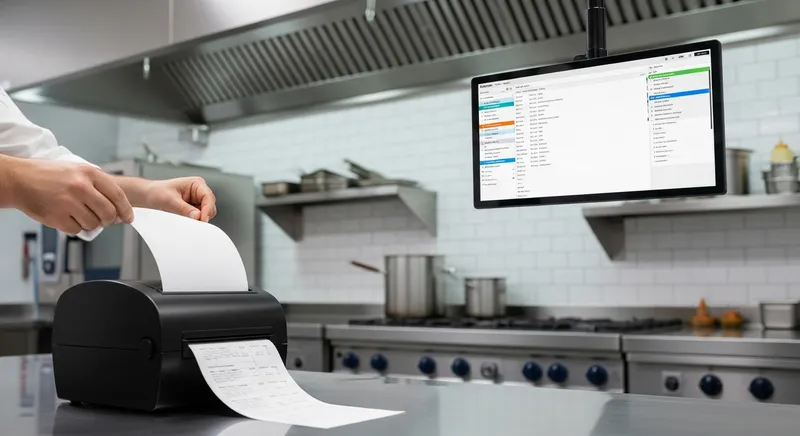
It's 8 PM on a Friday night. The dining room is full, the online order alerts are pinging nonstop, and your kitchen is a blur of controlled chaos. Then, it happens. The Wi-Fi flickers, and your Kitchen Display System (KDS) screen goes blank. Suddenly, there are no orders, no instructions, and no way of knowing what to cook next. The entire flow of your service grinds to a halt.
This is the nightmare scenario that keeps restaurant owners and head chefs up at night. While digital systems have revolutionised kitchen efficiency, relying on them 100% can feel like walking a tightrope without a safety net.
What if there was a way to get all the speed and accuracy of a digital KDS, backed by the bulletproof reliability of old-school paper dockets? There is. It's called a hybrid kitchen setup, and it's the professional's choice for operational resilience. This guide will give you a practical blueprint for choosing and implementing the right KDS with printer backup for your New Zealand business.
Why Go Hybrid? The Best of Both Digital and Paper Worlds
A modern KDS is a powerful tool. It streamlines communication, reduces errors, tracks ticket times, and organises your kitchen workflow. The shift to paperless systems has been a major trend for improving kitchen organisation and sustainability. But going fully digital ignores the undeniable power of paper.
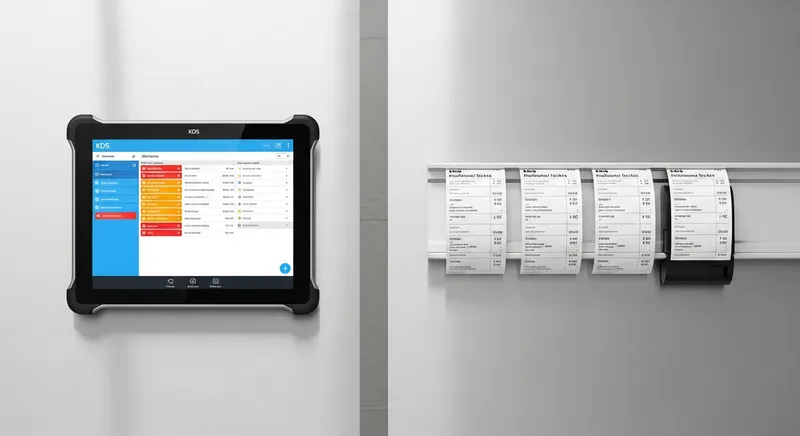
Here's why a hybrid model is the superior strategy:
- Digital Efficiency: Your KDS provides real-time data, colour-coded order statuses, and clear communication between front-of-house and the kitchen. It's your primary tool for speed and accuracy.
- Paper Redundancy: The printed docket is your safety net. If the KDS screen fails, the internet drops, or the power flickers, you still have a physical copy of every order. Service continues without a single missed beat.
- Tactile Workflow: Some chefs and kitchen staff simply work faster with a physical ticket they can touch, move, and mark up. A paper docket can travel with the plate down the line, ensuring every component is perfect.
- Accommodates All Staff: A hybrid system bridges the gap between tech-savvy younger staff and experienced chefs who trust paper. You get the best out of your entire team.
Framing your setup this way isn't a compromise; it's a professional strategy for a truly resilient operation. If you're just starting your journey, our KDS Setup Guide NZ: Your 7-Step Plan for a Smarter Kitchen can help you with the digital side of the equation.
Choosing Your Weapon: A Guide to KDS-Compatible Printers in NZ
Once you've decided to build a hybrid system, your most important decision is the printer itself. Not all printers are created equal, and the demanding environment of a commercial kitchen requires a specific type of hardware. The choice primarily comes down to two technologies: thermal and impact.
Thermal vs. Impact Printers: The Great Kitchen Debate
Understanding the difference here is crucial to avoiding costly mistakes and operational headaches.
Thermal Printers: These are the fast, quiet printers you typically see at front-of-house for printing customer receipts. They work by applying heat to special, chemically treated paper.
- Pros: Very fast, extremely quiet, high print quality.
- Cons: The paper is sensitive to heat. In a hot kitchen, dockets can fade or turn completely black under a heat lamp, making them unreadable.
Impact Printers (Dot Matrix): These are the workhorses of the kitchen. They use a print head with small pins that strike an ink ribbon, physically pressing the ink onto regular paper.
- Pros: Extremely heat resistant. The print will never fade from heat. They can print on multi-part paper to create duplicate dockets, and many can print in two colours (e.g., red for modifiers).
- Cons: They are noisier than thermal printers.
The Verdict: For any back-of-house station exposed to heat, steam, or grease, an impact printer is the only professional choice. Impact printers are the clear winner for hot environments because the paper itself is not heat-sensitive. Save the thermal printers for your front-of-house receipts.
Lazygrid Tip: Our POS system seamlessly integrates with the industry's best impact printers, including the Epson TM-U220 and Star Micronics SP742. You can configure orders to print automatically at multiple stations, ensuring your kitchen never stops. View our full hardware compatibility list by contacting our team.
Top Brands in NZ Kitchens: Epson vs. Star Micronics
In New Zealand, two brands dominate the market for reliable kitchen printers: Epson and Star Micronics. You can't go wrong with either, but they have slightly different strengths.
Epson: The Epson TM-U220 series is arguably the global industry standard. It's known for its incredible durability and features like two-colour printing to make special requests or allergy warnings stand out in red.
Star Micronics: The Star Micronics SP742 is another kitchen icon. It's built like a tank and features a "clamshell" design that makes changing paper rolls incredibly fast and simple, even in the middle of a rush.
| Feature | Epson TM-U220 | Star Micronics SP742 |
|---|---|---|
| Durability | Excellent | Excellent |
| Paper Loading | Standard | Very Easy (Clamshell) |
| Two-Colour Print | Yes (Black/Red) | Yes (Black/Red) |
| Footprint | Compact | Slightly Larger |
Actionable Tip: When budgeting, view your impact printer as a long-term investment in your kitchen's stability. A quality model will last for years.
Connectivity 101: How Your Printer Talks to Your KDS
How your printer connects to your POS network is just as important as the printer itself. You have three main options:
- Ethernet (LAN): The printer plugs directly into your router with a network cable. This is the most reliable and recommended method for a kitchen environment. A wired connection is immune to the Wi-Fi interference caused by stainless steel, microwaves, and other kitchen equipment.
- Wi-Fi: The printer connects to your network wirelessly. This offers more placement flexibility but can be less stable in a busy kitchen with lots of signal interference.
- Bluetooth: The printer connects directly to a specific iPad or terminal. This is the least reliable option for a fixed kitchen printer and is better suited for mobile setups.
Actionable Tip: For all core kitchen stations (e.g., grill, pass, pantry), always insist on an Ethernet connection for your printer. It will save you countless troubleshooting headaches.
Designing Your Hybrid Workflow: Practical Setups for NZ Businesses
There is no one-size-fits-all solution. The right hybrid setup depends on your venue's size, layout, and style of service. Here are a few practical blueprints:
Scenario 1: The Busy Restaurant: Use a large KDS screen at the main expediting pass for the head chef to oversee everything. Then, place dedicated impact printers at individual stations like the grill, fry, and pantry. This gives the expediter the master digital view for timing and coordination, while each chef gets a physical ticket for their specific items, which they can carry with the dish as it moves down the line.
Scenario 2: The Bustling Cafe: Use a KDS screen for your baristas to manage the complex, multi-stage coffee orders. For food orders from the cabinet or kitchen, a small, reliable impact printer at the food prep area is perfect. This splits the workflow, prevents the coffee queue from being held up by a food order, and gives the kitchen a tangible docket to work from.
Scenario 3: The Food Truck: Space is everything. A single, durable impact printer paired with a KDS running on a ruggedized iPad is a perfect combination. Mount the printer securely away from the fryer to protect it from grease splatter. The KDS screen provides a quick overview of incoming orders, while the printed docket can be clipped to the pass for the cook to focus on.
Scenario 4: The Dark Kitchen / Delivery-Only Operation: In a high-volume delivery kitchen, accuracy is paramount. Use a primary KDS screen for order management and timing. Then, set up an impact printer that prints a docket for each order. This docket can be attached to the bag, ensuring the correct order goes with the correct delivery driver every time, reducing costly errors and refunds.
These setups can be further enhanced with tools like self-service stations to manage order intake. For more ideas on this, see our NZ Restaurant Kiosk Guide (2027).
The Final Hurdle: Ensuring POS and Printer Compatibility
This is the most critical step. A printer will not work with your POS system unless the POS software is specifically designed to support it.
You cannot buy just any printer and expect it to connect. Before you spend a single dollar, you must do the following:
- Identify Your POS System: Are you using Lazygrid, Lightspeed, Square, or another provider?
- Find the Official Hardware Compatibility List: Go to your POS provider's website and find their list of supported printers. This is non-negotiable.
- Purchase the EXACT Model: Compatibility can be model-specific (e.g., TM-U220B vs. TM-U220D). Buy the exact model number from a reputable New Zealand supplier.
- Follow the Setup Guide: Your POS provider will have a step-by-step guide for connecting and configuring the printer.
Choosing the right POS system is the foundation of your entire tech stack. If you're evaluating your options, our Best POS Systems for NZ Bars & Restaurants: A 2026 Comparison can help you make an informed decision.
Getting Your Team Onboard: How to Introduce New Tech Without a Revolt
One of the biggest hurdles to adopting new technology is staff resistance. A hybrid system is your secret weapon for a smooth transition because it respects established workflows while introducing new efficiencies.
For staff to adopt new tools, the 'perceived usefulness' must be clear. They need to see how it makes their job better, not harder. Our customers report that staff adoption of a hybrid KDS and printer system is highest when the benefits are framed correctly from day one.
Here's how to win them over:
- Frame it as a Safety Net: Explain that the printer is a backup to make their lives easier during a potential crisis. It's a tool for stability, not a replacement for their skills.
- Involve Your Senior Staff: Ask your experienced chefs for their input on where the printers should be located and how they should be used. This creates buy-in and respects their expertise.
- Run in Parallel: For the first week, run the KDS and printers simultaneously. This allows staff to get comfortable with the screens while still having the paper dockets they trust. They will naturally see the benefits of the KDS for timing and organisation while feeling secure with the paper backup.
Conclusion: Build a Resilient Kitchen, Not Just an Efficient One
In hospitality, efficiency is important, but resilience is everything. A single bad service can damage your reputation and lose you customers for good. A hybrid kitchen setup, combining a modern KDS with a reliable impact printer, gives you the speed of digital with the unbreakable assurance of paper.
The cost of a high-quality impact printer-typically between $450 and $800 in NZ-is a tiny insurance policy against a catastrophic system failure. While you can source this hardware yourself, Lazygrid also offers complete hardware packages that bundle printers, iPads, and payment terminals into one seamless, cost-effective solution.
It's an investment in peace of mind, team morale, and consistent, uninterrupted service. Ready to build a bulletproof kitchen? Book a free 15-minute consultation with our POS specialists to design the perfect hybrid setup for your venue.
To understand how this fits into your budget, explore our Restaurant POS Systems NZ: A 2027 Cost & Pricing Guide.
Frequently Asked Questions
What is the best type of printer for a hot kitchen environment in NZ?
An impact printer (also known as a dot matrix printer) is the best and only professional choice for a hot kitchen. Models like the Epson TM-U220 or Star Micronics SP742 use an ink ribbon and regular paper, which are not affected by heat. In contrast, thermal printers use heat-sensitive paper that can turn black and unreadable under heat lamps or in a hot environment.
Can I use a standard front-of-house receipt printer in my kitchen?
It is strongly recommended that you do not. The vast majority of standard receipt printers are thermal printers. While they are perfect for quiet, cool front-of-house environments, the heat and steam in a kitchen can easily ruin the dockets they print. Investing in a purpose-built impact kitchen printer is essential for reliability.
How much does a good KDS-compatible kitchen printer cost in New Zealand?
For a new, high-quality, and durable impact printer from a top brand like Epson or Star Micronics, you should expect to budget between $450 and $800 NZD. While it may seem like a significant outlay, this hardware is a long-term investment. Alternatively, Lazygrid offers complete hardware packages that can bundle this cost into a single, affordable monthly fee.
Can my KDS screen and my kitchen printer run at the same time?
Yes, absolutely. This is the core principle of a hybrid kitchen setup. A modern POS system like Lazygrid allows you to configure your order routing so that when an order is placed, it instantly appears on the KDS screen and simultaneously prints a physical docket at one or more designated kitchen printers.
Do I have to buy my printer from my POS company?
Not usually, but this is a critical point: you must buy a printer model that is on your POS provider's official hardware compatibility list. POS software is only designed to work with specific hardware models. Lazygrid provides a certified hardware list and works with local NZ suppliers, so you can source printers with confidence that they'll integrate seamlessly. Always check the compatibility list first, then purchase the exact model from a reputable supplier.