
Epson vs Xprinter: Best NZ POS Receipt Printers (2026)
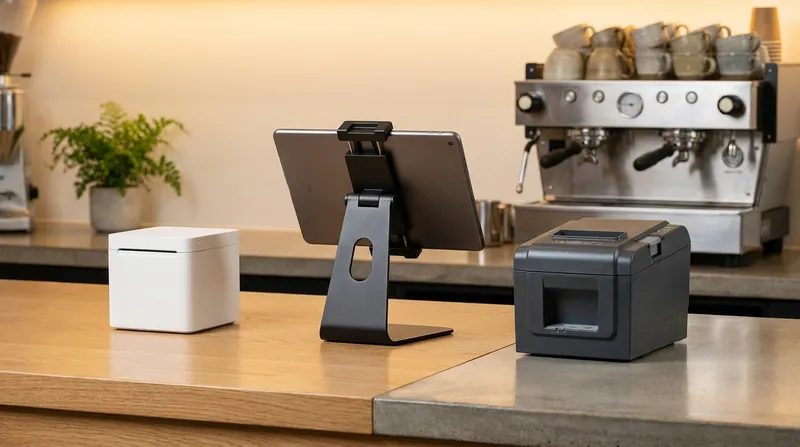
Buying a receipt or kitchen docket printer in New Zealand can feel like walking into a technical trap. You are either staring at an expensive price tag on an "official" POS hardware store, or you are looking at an affordable printer on PB Tech or Trade Me while worrying that it will refuse to talk to your iPad once you unbox it.
Nobody explains ESC/POS printer compatibility NZ business owners actually need in plain English. Worse, many global point-of-sale providers obscure how receipt printers work so they can lock you into buying marked-up hardware bundles.
According to the Restaurant Association of New Zealand's 2025 Hospitality Report, the industry recorded $15.99 billion in sales in the year to June 2025, with takeaway food services growing 3.2%. Whether you run a busy cafe, a full-service restaurant, a food truck, or a quiet massage and beauty clinic, every dollar you save on hardware goes straight back to your bottom line.
In this 2026 guide, we break down the real-world differences between the industry giant Epson (specifically the TM-T82IV and TM-m30III) and the budget disruptor Xprinter. You will learn how to avoid the "Vendor Lock-In Tax", which connection type prevents dropped dockets during the lunch rush, and how to pick the exact right printer for your specific workspace.
The "Vendor Lock-In Tax" and ESC/POS Compatibility
If you have ever wondered why an Epson printer costs significantly less at an independent NZ computer store like PB Tech than when the exact same model is bundled on a global POS provider's website, you have encountered the Vendor Lock-In Tax. For a closer look at how international providers structure their pricing, read our breakdown of why global POS systems cost NZ cafes more.
Here is the industry secret they rarely tell you: most thermal receipt printers support the same command language. That language is called ESC/POS (Epson Standard Code for Point of Sale).
ESC/POS is a universal command system (built around ASCII escape characters) specifically created so POS software can tell a thermal printer to print text, resize fonts, print QR codes, cut the paper, and kick open the cash drawer without needing proprietary brand drivers.
Closed vs Open POS Ecosystems
Why, then, does a budget universal ESC/POS thermal printer like an Xprinter fail to work with certain proprietary systems?
- Closed POS Systems (such as Lightspeed): Even though an Xprinter speaks fluent ESC/POS, some POS apps only support a limited list of certified printer models, so check your provider's hardware list before you buy. They often force you to choose from a narrow list of expensive models. (Note that global brands like Square, Toast, and Clover don't offer card processing in New Zealand.)
- Open POS Systems (Lazygrid POS, Loyverse): Open systems embrace universal standards. For example, if you are searching for a Loyverse compatible receipt printer NZ wide, Loyverse's official hardware documentation confirms that iPads and Android tablets can print to generic ESC/POS printers over a local network. Similarly, Lazygrid POS natively supports both commercial Epson TM series and affordable Xprinter XP series printers out of the box.
Actionable Tip: Before you buy any printer, check whether your POS software supports generic ESC/POS over LAN (Ethernet). Choosing an open POS platform immediately frees you to use a budget-friendly Xprinter instead of an expensive locked-down unit, saving you hundreds of dollars per terminal.
Epson vs Xprinter: Head-to-Head Comparison
When comparing Epson TM-T82IV vs Xprinter models (like the popular Xprinter XP-Q200II, XP-N160II, or XP-E260H), you are not comparing a working printer against a broken one. Both print sharp 203 dpi receipts, both cut 80mm thermal paper automatically, and both fire the RJ11/RJ12 trigger to pop open your cash drawer.
The real difference comes down to mechanical ratings, casing materials, and modern tablet features.
1. The Industry Workhorse: Epson TM-T82IV
Replacing the popular TM-T82III across New Zealand, the Epson TM-T82IV is the rugged grey box you see in thousands of Kiwi bakeries, bars, and busy takeaways. According to Epson New Zealand's official TM-T82IV specification overview, it is designed for low to medium volume POS with fast print speed:
- Print Speed: Up to 250 mm/sec.
- Connectivity: Built-in all-in-one triple interface (USB + Serial + LAN Ethernet).
- Printhead Life: Rated for 150 km of thermal paper.
- Auto-Cutter Life: Rated for 2.0 million cuts.
2. The Sleek Front-Counter Flagship: Epson TM-m30III
If you are checking the Epson TM-m30III NZ price, you will notice it sits at the top of the market at independent retailers, and even higher at bundled POS stores. Why do high-end cafes and boutique salons love it?
According to Epson's official TM-m30III overview, this ultra-compact cube prints at a blistering 300 mm/sec, features an IPX2 water-resistant and antimicrobial enclosure, reduces paper usage by up to 49% with backward paper feeding, and includes a USB-C Power Delivery port (up to 18W) that charges your iPad directly from the printer while syncing data.
3. The Smart Budget Disruptor: Xprinter (XP-Q200II / XP-N160II / XP-E260H)
If you are hunting for a reliable yet cheap POS printer NZ operators can trust without overspending, Xprinter is a strong contender. In fact, we include Xprinter wireless units in the Lazygrid Starter ($999) and Standard ($1,999) Hardware Packages because their price-to-performance ratio is ideal for small to medium businesses.
Based on Xprinter's official 80mm series range and typical published specs for popular models like the XP-N160II, their 80mm LAN/USB models deliver:
- Print Speed: 160 mm/sec (XP-N160II) up to 200-260 mm/sec on faster models.
- Connectivity: Triple interface (USB + Serial + 100M LAN Ethernet) or Wi-Fi/Bluetooth variants.
- Printhead Life: Rated for 100 km to 150 km of paper.
- Auto-Cutter Life: Rated for 1.5 million cuts.
2026 NZ Printer Comparison Matrix
| Feature | Epson TM-T82IV | Epson TM-m30III | Xprinter 80mm (XP Series) | Epson TM-U220 (Impact) |
|---|---|---|---|---|
| Printer Type | Direct Thermal | Direct Thermal | Direct Thermal | Dot-Matrix Impact |
| Price Tier | Mid-Range | Premium | Budget-Friendly | Mid- to High-Range |
| Print Speed | 250 mm/sec | 300 mm/sec | 160 - 260 mm/sec | 4.7 to 6.0 lines/sec |
| Auto-Cutter Life | 2.0 million cuts | 2.2 million cuts | 1.5 million cuts | Standard mechanical cutter |
| Noise Level | Quiet (Whip cutter) | Whisper Quiet | Quiet (Slightly sharper cut) | Loud (Ribbon strike) |
| Kitchen Heat Resistance | Moderate (Paper darkens in high heat) | Low (Front counter only) | Moderate (Paper darkens in high heat) | Extreme (Ink ribbon) |
| Best NZ Use Case | Busy cafes & takeaways | Boutiques, salons, sleek bars | Cafes, massage clinics, startups | Hot grill & deep-fryer lines |
Actionable Tip: Do the math on your daily transactions. If your cafe, massage clinic, or salon prints 150 receipts a day, an Xprinter rated for 1.5 million cuts will take over 27 years to wear out its cutter blade. Save the roughly $150-$300 price difference and invest it into your marketing or customer experience.
Choosing the Right Setup for Your Venue
One of the most expensive mistakes a new restaurant or cafe owner can make is putting the wrong printer in the wrong environment, or choosing a wireless connection that drops out during service. Here is how to match your kitchen heat tolerance, network setup, and industry needs.
Thermal vs Impact Kitchen Docket Printers: Surviving Heat & Humidity
When evaluating a thermal vs impact kitchen docket printer, you need to understand how the paper reacts to your kitchen's microclimate.
Thermal printers do not use ink. Instead, the paper is coated with a heat-sensitive chemical (leuco dye) that turns black when heated by the printhead. If your cafe kitchen printer heat resistance is tested by high ambient temperatures above a roaring gas grill, salamander, or deep fryer, or if a chef rests a hot pan near the docket rail, the entire thermal docket will turn pitch black and become completely unreadable.
If your printer sits directly on the hot line, you have two reliable options:
- Dot-Matrix Impact Printer (Epson TM-U220): According to Epson's official TM-U220 kitchen printer specifications, this printer uses a 9-pin mechanical head that strikes an ink ribbon against plain, non-thermal paper. It even prints in two colours (black for standard items, bright red for modifiers like "NO GLUTEN" or "EXTRA HOT"). Heat and steam cannot erase ink on bond paper, and the loud mechanical buzz alerts chefs over the roar of extraction fans.
- Kitchen Display System (KDS): Why pay for paper rolls and ink ribbons at all? With Lazygrid's Kitchen Display System (KDS), orders route instantly from the front counter (or from table QR codes on the Premium plan) to a mounted screen in the kitchen, colour-coded by urgency with allergen warnings highlighted.
Actionable Tip (The Hybrid Setup Strategy): Put an affordable 80mm POS receipt printer Ethernet model (like an Xprinter or Epson TM-T82IV) at your front counter for customer receipts and cold barista/salad stations. For the hot cooking line, mount a KDS tablet in a heat-shielded case or run an Ethernet cable to an impact printer.
Connectivity Options: Why LAN Ethernet Beats Bluetooth and Wi-Fi
When business owners search for a wireless docket printer for hospitality NZ wide, they usually assume Wi-Fi or Bluetooth is the easiest way to connect to an iPad. In a busy commercial environment, that assumption causes massive headaches.
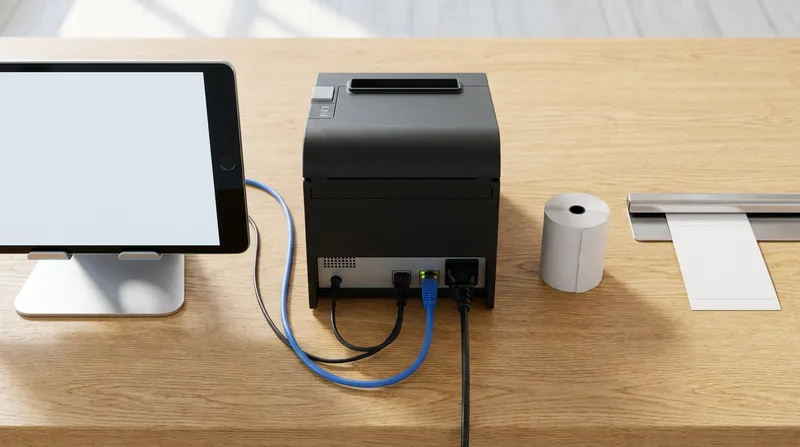
How does an iPad use an Ethernet printer if the iPad does not have an Ethernet port? You do not plug the Ethernet cable into your iPad. Instead, you plug the LAN Ethernet receipt printer directly into your broadband router (or a basic network switch) using a standard Cat6 cable. Your iPad connects to that same router via Wi-Fi. When you tap "Print" on your iPad POS, the signal travels over Wi-Fi to your router, and rockets down the physical copper Ethernet cable into the printer.
Why is this vastly superior to Wi-Fi or Bluetooth printers?
- Zero Microwave or Espresso Machine Interference: Commercial espresso machines, unshielded microwaves, and customer smartphones in your cafe crowd the 2.4GHz wireless spectrum, causing Wi-Fi and Bluetooth printers to randomly drop offline.
- Multi-iPad Sharing: Bluetooth locks a printer to a single iPad (1-to-1 pairing). If you have two iPads at the counter and staff taking table orders on iPhones, a LAN printer lets every device print to the same printer simultaneously.
- Offline Reliability: Because the printer sits on your local area network (LAN), your iPad can still print kitchen dockets and trigger the cash drawer even if your fibre internet cuts out down the street. For a deeper look at protecting your checkout during outages, read our guide on Offline POS & EFTPOS NZ: Taking Payments Without Internet.
Actionable Tip: When setting up a LAN printer, log into your router settings (or use the printer configuration utility) to assign the printer a Static IP Address (for example, 192.168.1.200). This stops your router from changing the printer's IP address after a power cut.
Industry Guide: Salons, Food Trucks, and Cafes
A burger truck at an Auckland night market has completely different hardware needs from a tranquil day spa in Queenstown. Here is how to match your printer to your exact business type:
- Massage Clinics, Day Spas, and Beauty Salons: Sensory ambiance is everything, and nothing ruins a client's post-massage relaxation faster than a noisy printer at reception. Choose an Xprinter XP-Q200II tucked neatly under the desk (high value, quiet thermal head) or the Epson TM-m30III if your printer sits on top of a designer stone counter. Pair your printer with our Best Massage & Day Spa Booking Software NZ (2026 Guide) so your reception iPad handles automated SMS reminders, digital gift cards, and silent receipt printing from one screen. Plus, if you sell physical treatment vouchers at reception, make sure your printed receipts comply with the NZ Gift Card Expiry Law: 3-Year Guide for Hospo & Wellness.
- Food Trucks, Coffee Carts, and Market Stalls: Space is tight, power is precious, and you do not always have a fixed fibre router. For mobile setups, a compact Xprinter on Wi-Fi, connected to a 4G/5G mobile router, works with an iPhone or iPad running Lazygrid Lite ($24/month). If you are planning to expand into a permanent site soon, buy an 80mm LAN/Wi-Fi Xprinter now so you don't have to replace it later - check out our Food Truck to Cafe: POS Upgrade Guide for NZ for more hardware scaling tips. If you upgrade to Lazygrid Standard ($59/month), Online Ordering sends customer orders straight to your docket printer, letting you focus on cooking instead of taking phone orders.
- Busy Cafes and Full-Service Restaurants: During the 8:30 AM coffee rush or Friday night dinner service, speed and station routing dictate your profit. Consider the Lazygrid Standard Package ($1,999 excl. GST), which includes 2 iPads (64GB), 2 Xprinter wireless printers, and a cash drawer - or pair an Epson TM-T82IV at the front counter with an Xprinter on the barista station. Using Lazygrid Advanced Printing (included on the $59/month Standard plan), you can customise receipt templates with your logo, add a QR code at the bottom of the docket, and route items to different kitchen printers. (Our Loyalty Programme is part of the Premium plan.)
80mm vs 58mm Receipt Paper Explained (Plus NZ IRD Rules)
When shopping for thermal printers, you will see two paper widths: 80mm (standard 3.15-inch rolls) and 58mm (narrow 2.25-inch rolls used in portable EFTPOS terminals). For your main POS printer, always choose an 80mm printer:
- Kitchen Legibility: An 80mm docket gives you 48 characters per line instead of 32. That means table numbers, course breaks, and allergy notes print on a single clean line instead of wrapping awkwardly and causing kitchen mistakes.
- Lower Cost Per Metre: Standard 80mm x 80mm thermal rolls hold significantly more paper per roll than tiny 58mm rolls, meaning your staff spend less time changing paper mid-rush.
- IRD Tax Compliance: Under Inland Revenue rules, if a GST-registered customer asks, you must give them taxable supply information within 28 days for supplies over $200. For supplies up to $1,000 that means your name, GST number, the date, a description of what was supplied, the amount, and either the GST amount or a statement that GST is included. Over $1,000, you also need the buyer's name and an identifier. An 80mm receipt easily accommodates your logo, item descriptions, and required tax details without turning into a half-metre-long scroll.
Actionable Tip: Always buy BPA-Free (Bisphenol-A free) 80mm thermal paper rolls from local NZ hospitality suppliers, and store spare cartons in a cool, dry cupboard away from kitchen boilers so the rolls don't grey before you use them.
4-Step Compatibility Checklist Before You Buy
Never buy a second-hand or discounted POS printer on Trade Me without checking the interface sticker on the underside of the unit. Many ex-supermarket Epson printers sold cheap online have USB-only or legacy 25-pin Serial/Parallel ports - which means they cannot plug into your router to talk to an iPad!
Run through this 4-step checklist before spending a cent:
- Verify the Interface Port: Look at the back of the printer. Ensure it has an RJ45 Ethernet (LAN) port (which looks like a slightly wider phone jack) right next to the RJ11/RJ12 Cash Drawer port. (Be careful: both ports look similar! Only plug your router cable into the port labelled
LANorEthernet, never the port labelledDKorDrawer). - Confirm Native ESC/POS Support: Check the spec sheet for "ESC/POS command compatible". Both Epson TM models and Xprinter XP models support this natively.
- Check Your POS App's Hardware Freedom: If you are looking for Lightspeed POS printer alternatives NZ wide because you are tired of paying high prices for proprietary hardware bundles, switch to an open iPad system like Lazygrid POS that welcomes both Epson and Xprinter hardware.
- Test Cash Drawer Voltage: Most printer-driven cash drawers use a 24V solenoid; check that your drawer's voltage matches your printer's DK port output.
Frequently Asked Questions (FAQ)
Will an Xprinter work with iPad POS systems like Lightspeed or Loyverse in NZ?
Some closed POS apps like Lightspeed only support a limited list of certified printer models (primarily select Star Micronics and Epson units), meaning an Xprinter usually will not connect. However, open POS systems like Lazygrid POS and Loyverse support universal ESC/POS printing, allowing you to use affordable Xprinter LAN/wireless models seamlessly with your iPad.
Why is a LAN (Ethernet) receipt printer better than Bluetooth or Wi-Fi for cafes?
A LAN receipt printer connects to your router with a physical Ethernet cable, making it immune to wireless interference from espresso machines, microwaves, and customer phones. It also allows multiple iPads and iPhones to print to the same printer simultaneously.
Can I use a thermal printer in a hot commercial kitchen, or do I need an impact printer?
You can use an 80mm thermal printer (like the Epson TM-T82IV or Xprinter) on cold larder stations, pass counters, or barista benches. However, if the printer sits directly above a hot grill, fryer, or steamer where high ambient heat reaches the paper, thermal paper will turn black - use an Epson TM-U220 impact printer or a digital Kitchen Display System (KDS) instead.
What is the difference between the Epson TM-T82IV and the Epson TM-m30III in NZ?
The Epson TM-T82IV is a rugged workhorse with a built-in USB/Serial/LAN triple interface designed for low to medium volume POS with fast print speed. The Epson TM-m30III is an ultra-compact, designer cube printer aimed at sleek front counters that also charges your iPad via USB-C Power Delivery.
What does ESC/POS compatible mean when buying a cheap POS printer in New Zealand?
ESC/POS is the universal programming language invented by Epson that tells receipt printers how to format text, print barcodes, cut paper, and open cash drawers. When your POS software supports universal ESC/POS, you can use budget-friendly printers like Xprinter without being locked into overpriced hardware bundles.
How do I find or change the IP address on an Epson or Xprinter LAN receipt printer?
To find your printer's current IP address, turn the printer off, hold down the Feed button on the front panel, and switch the power back on while keeping the button held for 3 to 5 seconds. The printer will output a hardware self-test slip displaying its current IP address, Subnet Mask, and Gateway. Make sure the first three sets of numbers (such as 192.168.1.xxx) match your iPad's Wi-Fi network subnet so your POS app can discover it immediately.
Why is my cash drawer not opening automatically when my receipt printer prints?
First, check the back of your printer and verify that the cash drawer's RJ11/RJ12 cable is plugged into the port labelled DK (Drawer Kick) and not accidentally plugged into a Serial or LAN port. Second, confirm that the physical key on the front of the cash drawer is turned to the vertical (unlocked/electronic) position rather than deadlocked. Finally, open your iPad POS printer settings and ensure the "Open Cash Drawer on Cash Sale" trigger is toggled on.
Can I use a USB-only receipt printer with an iPad POS in New Zealand?
Standard USB-A receipt printers generally cannot connect directly to an iPad because Apple iOS restricts generic USB serial drivers, and lightning/USB-C adapters prevent you from charging the iPad safely during service. The major exception is a modern USB-C Power Delivery printer like the Epson TM-m30III, which is MFi-certified to transmit data and supply 18W of charging power to your iPad over a single USB-C cable. For all other printers, a LAN (Ethernet) connection to your router is far more reliable.
How do I stop kitchen dockets from getting lost when my cafe internet drops out?
If you connect your kitchen and barista printers to your local router via LAN Ethernet cables and use an offline-capable POS like Lazygrid, your docket printing never touches the outside internet. Even if a street fibre outage takes down your broadband, your iPad communicates directly with your router over local Wi-Fi to print kitchen dockets and open the cash drawer without interruption.
Are thermal receipts legal for GST tax invoices in New Zealand, or do they fade too fast?
Yes, thermal receipts can serve as taxable supply information in New Zealand, as long as they show the details IRD requires for the value of the sale (for supplies over $200: your name, GST number, date, description, amount and GST, plus buyer details over $1,000). Because thermal paper can fade if exposed to UV sunlight, plasticiser wallets, or heat over several years, IRD allows businesses and customers to store digital copies or photos of receipts, and Lazygrid POS also lets you email digital receipts directly to customers while archiving every transaction in the cloud.
Stop Overpaying for POS Hardware in New Zealand
Choosing between Epson and Xprinter does not have to be a gamble. If you need a 2 million cut autocutter rating for a busy counter or a sleek USB-C charging hub, Epson remains a phenomenal piece of engineering. If you want fast, quiet, reliable 80mm receipt and docket printing at a fraction of the price, Xprinter delivers everything a modern Kiwi cafe, restaurant, food truck, or salon needs.
Best of all, when you run your business on Lazygrid POS, you never pay the Vendor Lock-In Tax. You can bring your existing iPad and connect to either an Epson or Xprinter network printer on our $24/month Lite plan or $59/month Standard plan - or grab our complete Starter Hardware Package ($999 excl. GST, or from $79/month leased) with an iPad, wireless Xprinter, and cash drawer ready to plug and play.
Ready to upgrade your counter without getting ripped off on hardware? Explore more practical hospitality guides on the Lazygrid Blog or get in touch with our Wellington-based team today to build a POS setup tailored to your business.