
Direct to Kitchen Routing: Kiosks, KDS & Printers in NZ
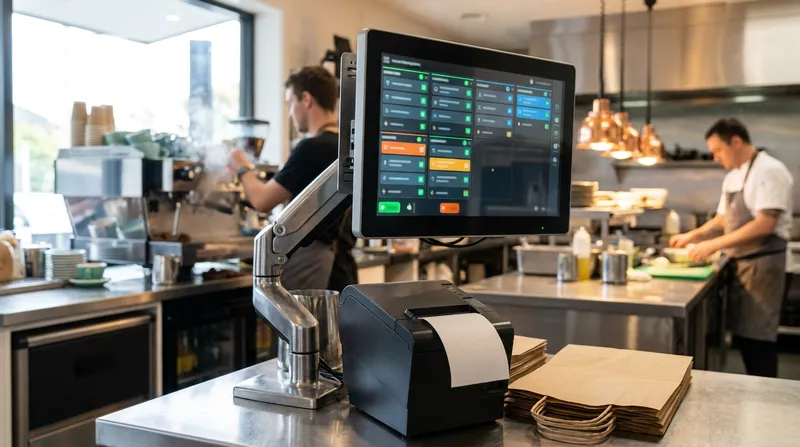
It is 9:30 AM on a Sunday in your cafe, or 6:45 PM on a Friday in your takeaway shop. Within ninety seconds, four customers tap their cards at your self-ordering kiosk station, three regulars place pickup orders through your website, two tables scan their QR codes, and a queue forms at your front register.
If your point-of-sale setup isn't built for automated kitchen order routing, that five-minute rush turns into pure chaos. Front-counter staff get stuck manually re-punching online tablet orders into the main till. A single thermal printer at the pass spits out a two-metre ribbon of uncut paper. Barista coffee dockets get buried underneath complex burger modifications, and your kitchen misses a high-margin online pickup order completely.
You do not have the spare wages to pay someone just to play traffic controller at the front counter. According to the Restaurant Association of New Zealand's Hospitality Report, hospitality sales reached a record $15.99 billion in the year to June 2025, while its 2025 Remuneration Survey found wages had reached a record average of 40% of business costs amid shortages of skilled kitchen and senior front-of-house staff.
In this guide, you will learn how to eliminate the front-counter bottleneck. We will cover how to connect online and kiosk orders directly to your kitchen, how to weigh up a kitchen display system against a kitchen printer, and how to configure station-by-station ticket routing for New Zealand restaurants, cafes, food trucks, and service businesses.
How Automated Kitchen Order Routing Works
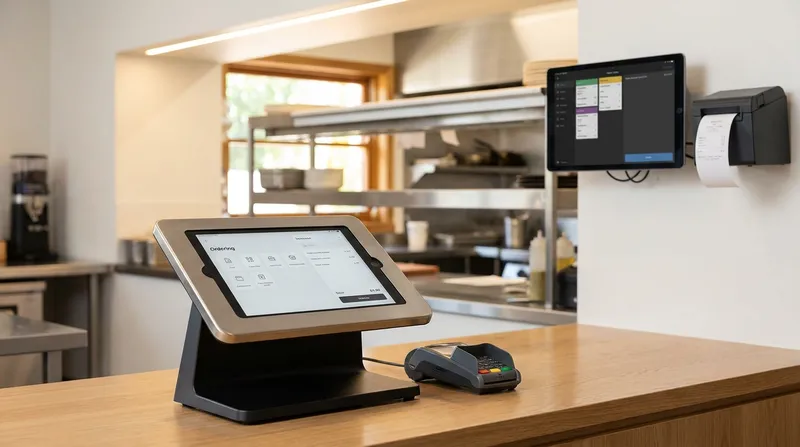
Omnichannel order routing technology is the invisible traffic controller inside your POS software. When a customer completes a transaction (whether on a self-service kiosk, your branded online store, a table QR code, or the front till), the system splits that order into individual items and sends each item directly to the specific prep station responsible for making it.
Streamlined Order Integration vs. Manual Re-Keying
When online ordering platforms and self-service kiosks are disconnected from your main POS, staff have to manually read orders off secondary tablets and re-punch them into the register, creating delays and transcription errors during peak service.
When evaluating Lightspeed POS alternatives in New Zealand, look for integrated kitchen routing features:
- Integrated Order Flow: Kiosk and online orders validate payment (via EFTPOS NZ or Stripe) and integrate directly with your POS, Kitchen Display System (KDS), and network printers so staff never have to manually re-key orders at the counter.
- Item-Level Splitting: A single transaction containing a Flat White, an Eggs Bene, and a cold Cabinet Muffin is automatically split across stations.
- Synchronised Modifiers: Dietary requirements, allergy warnings, and cooking temperatures stay permanently attached to the parent item so the grill chef never sees "Oat Milk" and the barista never sees "Medium Rare".
Actionable Step: Review how your online and kiosk orders currently reach your prep stations. If staff are still re-entering orders from third-party tablets into the main till, consolidate onto a single POS platform that routes all channels automatically.
Kitchen Display System vs Kitchen Printer: Which Suits Your NZ Venue?
One of the biggest hardware decisions in hospitality is choosing between a kitchen display system and a kitchen printer. The reality in New Zealand kitchens is practical: both tools have distinct strengths, and your physical environment dictates which one wins.
1. Kitchen Display System (KDS)
A KDS is a digital screen (typically an iPad in a protective commercial mount) installed directly at a prep station. Instead of paper dockets hanging on a metal slide rail, orders appear as digital cards in real time.
- Colour-Coded Urgency: Tickets are colour-coded by urgency, keeping kitchen staff focused during peak service.
- Course & Prep Tracking: Chefs can manage multi-course dine-in progression (entrees, mains, desserts), track prep times, and bump completed orders off the screen.
- Compliance & Digital Records: Moving away from paper doesn't compromise food safety compliance. Under the New Zealand Food Act 2014, guidelines from the Ministry for Primary Industries confirm that businesses operating under a Template Food Control Plan can use digital systems rather than paper, provided electronic records remain accurate, backed up, and accessible for four years.
2. Thermal Kitchen Docket Printers
A thermal kitchen docket printer setup uses heat-sensitive 80mm paper rolls to print tickets almost silently at high speeds. Printers like the EPSON TM series or Xprinter XP series connect via Ethernet or Wi-Fi and cost nothing in monthly software fees.
However, thermal paper has one physical weakness: heat and steam. As hardware manufacturer Star Micronics notes, orders printed on heat-sensitive thermal paper can blacken and become completely illegible when exposed to high temperatures, hot lamps, and steam near deep fryers and grills.
If you want a detailed breakdown of specific printer models and costs in New Zealand, read our comparison of Epson and Xprinter receipt printers.
Hardware Comparison Matrix (NZ Context)
| Feature | iPad Kitchen Display System (KDS) | Thermal Docket Printer (Epson / Xprinter) | Impact Dot-Matrix Printer |
|---|---|---|---|
| Best Station | Hot line, Grill, Barista pass | Expo pass, Cold larder, Bar, Takeaway bagging station | Extreme-heat wok stations, heavy grease/steam zones |
| Ongoing Consumables | $0 (No paper or ribbons) | 80x80mm thermal paper rolls | Paper rolls + replacement ink ribbons |
| Heat & Steam Resistance | High (with commercial enclosure) | Low (dockets turn black under heat lamps) | Very High (uses physical pins and ink) |
| Prep Time Analytics | Yes (tracks prep times) | No (once printed, data is static) | No |
| Takeaway Bagging | Cannot stick an iPad to a paper bag | High (staple docket to bag) | Moderate (paper docket only) |
Actionable Step: Walk through your kitchen during service and check where your heat lamps, dishwashers, and fryers sit. Never mount a thermal printer directly above a deep fryer or under a pass heat lamp; place an iPad KDS on the hot line and keep your thermal printer at the cooler packing/expediting bench.
The Hybrid KDS and Kitchen Printer Setup: Why Top Takeaway Venues Use Both
If you run a busy cafe or takeaway operation in New Zealand, going 100% paperless creates a new headache at the final handoff. When twenty brown paper takeaway bags are lined up on the counter waiting for customers and delivery drivers, how does your front-of-house runner know which bag holds Order #42 (Gluten-Free Burger, no pickles) and which holds Order #43?
This is why a hybrid KDS and kitchen printer setup is the gold standard for New Zealand hospitality.
How the Hybrid Workflow Operates
- Digital Prep on the Line: When an online or kiosk order arrives, the kitchen hot line and barista view the items on their respective iPad KDS screens. They get all the benefits of colour-coded urgency, highlighted allergen warnings, and zero wet paper cluttering the prep bench.
- Physical Ticket at the Pass (Expo): A thermal printer at the packing/expo station prints a summary docket using kitchen ticket routing and duplicate printing.
- Accurate Handoff: The packer checks the items against the printed receipt, staples it directly onto the takeaway bag, and places it in the pickup zone.
According to Star Micronics, pairing a printer with a Kitchen Display System helps venues generate physical order documentation for accurate handoffs between prep staff, expeditors, and customers.
Moreover, eliminating order assembly mistakes directly protects your bottom line. Every misread modifier that gets remade comes straight out of your gross profit, which is why accurate routing is essential for closing the gap between theoretical and actual food costs.
Actionable Step: Configure your prep stations (Grill, Fryer, Espresso Machine) to use digital KDS screens, and assign one thermal printer at your customer collection point using duplicate printing for takeaway and online pickup orders.
Self-Ordering Kiosks & Online Ordering in NZ
EHL Hospitality Business School notes that hospitality businesses are turning to self-service kiosks and automated platforms to address staffing shortages and reallocate staff to high-touch guest service. Furthermore, according to change consultancy Prophet, firms focused on human-centric business transformations are 10 times more likely to see revenue growth of 20% or higher.
In New Zealand, businesses are seeing substantial returns from cloud software adoption. An NZIER report on cloud-based business tools estimated that a 20% increase in cloud computing uptake among New Zealand businesses could lift real GDP by between $3.5 billion and $6.2 billion through improved productivity.
How the Integrated Kiosk & Online Flow Works
When you deploy Lazygrid's connected POS system, you don't need expensive, proprietary $5,000+ kiosk towers. You can turn a standard iPad into a sleek self-ordering kiosk station paired with an EFTPOS NZ certified terminal:
- Customer Browses & Upsells: The customer walks up to the iPad kiosk, views high-resolution photos, selects modifiers (such as milk types or extra sides), and responds to automated upsell prompts.
- Instant Payment: The customer taps their Visa, Mastercard, Apple Pay, or local EFTPOS card on the paired terminal (or pays via Stripe on your commission-free online ordering website).
- Order Placed: The order is confirmed and sent to the kitchen.
- Station Routing: Without staff needing to re-key the transaction at the till, the coffee order routes to the barista KDS, the hot kitchen order routes to the chef's screen, and the customer steps aside to wait.
Managing ASAP and Scheduled Online Orders
When customers order online, clear scheduling keeps your kitchen organised:
- ASAP Orders: Sent through for immediate preparation once payment clears.
- Scheduled Future Orders: Customers can schedule orders for a future time, so you can plan prep around pickup slots.
Actionable Step: Enable automated upsell prompts on your self-service kiosk and online menu for high-margin add-ons (like hash browns, extra espresso shots, or cold drinks) to increase average order value without extra staff effort.
Step-by-Step: Ticket Routing POS Configuration by Prep Station
Setting up ticket routing POS configuration doesn't require an IT degree, provided you structure your menu categories logically. Follow this 5-step checklist to configure prep station printer routing and KDS screens accurately:
Step 1: Map Your Physical Stations
Identify every distinct production zone in your business. Common stations include:
- Barista / Espresso Pass
- Hot Kitchen (Grill & Fry)
- Cold Larder / Cabinet / Salads
- Bar / Drinks Dispense
- Expo / Takeaway Packing Bench
Step 2: Assign Static IP Addresses to Network Hardware
A common reason kitchen printers stop printing is a dynamic IP change after the router restarts. Log into your router (or ask your IT provider) to reserve a static IP address for every Ethernet/Wi-Fi printer and KDS iPad on your local network.
Step 3: Tag Menu Categories & Items to Stations
Inside your POS dashboard (kitchen printer routing is included with Advanced Printing on Lazygrid Standard and Premium plans), assign product categories to specific output devices:
- Route
Hot DrinksandIced Coffee-> Barista KDS. - Route
Burgers,Mains, andSides-> Hot Kitchen KDS / Printer. - Route
Tap BeerandWines-> Bar Printer.
Step 4: Configure Modifier & Course Rules
Make sure item-level notes and allergen information appear on KDS screens (where allergen warnings are highlighted) and on printed dockets. If you offer full table service using Lazygrid's Table Management and QR code ordering (available on the Premium plan), enable course grouping so chefs can clearly see "Entree" vs "Main" on the ticket.
Step 5: Set Up Expo & Duplicate Printing
If you run takeaway or delivery, enable duplicate printing on your packing bench printer so every multi-station order produces a complete checklist for the person bagging the food.
4 Real-World Routing Blueprints for NZ Businesses
Every business layout is different. Below are four proven hardware and routing blueprints tailored to New Zealand hospitality and service operators.
Blueprint 1: High-Volume NZ Cafe (Cabinet + Espresso + Kitchen)
- Order Channels: Front Counter iPad POS + 1 Countertop iPad Self-Ordering Kiosk + Online Pre-Ordering for morning commuters.
- Routing Setup:
- Coffee & Specialty Drinks: Routed to a 10-inch iPad KDS mounted right beside the espresso grinder.
- Cooked-to-Order Brunch: Routed to a wall-mounted iPad KDS in the kitchen.
- Cabinet Food (Toasted): Triggers a warming chit on a compact thermal printer behind the cabinet so front-of-house staff know to heat the panini and plate it.
Blueprint 2: Friday-Night Takeaway & Burger Shop
- Order Channels: 2 Self-Service Kiosks at the entrance + Commission-Free Branded Online Ordering Website + Front Till.
- Routing Setup:
- Grill & Fry Line: iPad KDS showing burger mods and fry counts in real time.
- Packing Pass (Expo): EPSON or Xprinter Ethernet thermal printer that prints the duplicate customer docket to staple onto the brown takeaway bag.
Blueprint 3: Mobile NZ Food Truck or Coffee Cart
Space, power draws, and mobile connectivity are everything when you operate on wheels. For a deep dive into mobile power and EFTPOS setups, check out our NZ food truck POS hardware guide.
- Order Channels: Customer-facing iPad Kiosk mounted in the truck window + Online pre-ordering link (e.g., on your A-frame sign) so customers can order and pay on their phones + iPhone/iPad mobile till.
- Routing Setup:
- 4G Cellular Router: Creates a reliable local Wi-Fi network inside the truck.
- Single Hybrid Station: One iPad KDS mounted above the prep bench for the cook, paired with one compact Xprinter wireless thermal printer (part of Lazygrid's $999 Starter Hardware Package) for customer receipts during festival rushes.
Blueprint 4: Massage Clinic, Day Spa & Beauty Salon
Streamlined workflows aren't just for hospitality. Service businesses in New Zealand also face front-desk bottlenecks when receptionists are busy or when solo therapists are between appointments. (See our guide to massage and day spa booking software in NZ for full clinic workflows).
- Booking & POS Channels: Online Booking Widget + Reception iPad POS.
- Workflow Setup:
- Client Bookings & Preferences: Clients can book online (including via Reserve with Google on the Premium plan), and redeem digital vouchers (kept compliant under our NZ gift card expiry law guide).
- Customer Management & Commission Tracking: Therapists can view client preferences and notes in customer management, and add-on sales (such as aromatherapy upgrades or retail skincare products) are logged against staff for commission tracking (learn more in our guide to automating NZ staff tips and commission).
Troubleshooting Network, Wi-Fi, and Offline Issues
Even the best kitchen workflow will stumble if your local network drops packets. Here is how to bulletproof your back-of-house connectivity:
- Use Ethernet (LAN) Over Wi-Fi for Kitchen Printers: Kitchens are full of stainless steel benches, commercial microwaves, and thick tiles that block Wi-Fi signals. Whenever possible, run a physical Cat6 Ethernet cable from your router to your kitchen thermal printers.
- Separate Your Guest Wi-Fi from Your POS Network: Never let customers connect to the same Wi-Fi network that your KDS, printers, and EFTPOS terminals use. Set up an isolated VLAN or separate guest SSID on your router so customers streaming video don't lag your kitchen dockets.
- Plan for Internet Outages: What happens if a storm knocks out fibre in your suburb? With Lazygrid's offline mode, you can keep selling in-store during internet outages. For payment continuity procedures, keep our guide on offline POS and EFTPOS payments in New Zealand bookmarked.
Frequently Asked Questions (FAQ)
Can self-ordering kiosk and online orders go to the kitchen without manual re-keying at the front counter?
Lazygrid POS integrates online ordering and self-service kiosk orders with your POS and kitchen printers or KDS, so orders don't need to be re-keyed at the counter.
Is a Kitchen Display System (KDS) better than a thermal kitchen printer for a small NZ cafe?
It depends on the station. An iPad Kitchen Display System (KDS) is ideal for high-volume espresso passes and hot kitchen lines because it has zero ongoing paper costs, highlights allergen warnings, tracks preparation times, and never turns black near heat lamps or steam. However, a thermal kitchen printer remains ideal for cabinet warming passes and takeaway bagging benches where staff need to attach a physical order slip to a paper bag.
Can I use a hybrid KDS and kitchen docket printer setup at the same time?
Yes, a hybrid KDS and kitchen printer setup is a highly efficient configuration for New Zealand cafes and takeaway shops. In a hybrid workflow, chefs and baristas prepare food and drinks off digital KDS screens at their stations, while a networked thermal printer at the expeditor or packing pass prints a duplicate receipt to staple onto takeaway bags for accurate customer and driver handoffs.
How do I route coffee orders to the barista and food orders to the kitchen automatically?
You configure automated station routing by mapping your menu categories or individual products to specific output devices in your POS dashboard. When a customer places a single order containing a Flat White, a burger, and a cold drink, the POS splits the ticket automatically: the Flat White routes only to the barista KDS, the burger routes to the hot grill screen, and a duplicate ticket prints at the pass.
What happens to my POS if my restaurant Wi-Fi or internet drops out?
With Lazygrid's offline mode, you can keep selling in-store during internet outages. To avoid wireless interference from stainless steel benches and commercial kitchen appliances during normal operations, always connect kitchen printers to your router using physical Cat6 Ethernet cables and assign static IP addresses.
Why do oily or hot kitchens need impact printers or KDS screens instead of standard thermal printers?
Standard thermal printers use heat-reactive paper that turns black and becomes illegible when exposed to high ambient temperatures, steam, or pass heat lamps above deep fryers and grills. Hot, humid kitchens should either mount an iPad KDS in a protective enclosure or use an impact dot-matrix printer, which strikes an ink ribbon onto bond paper that will not fade under heat.
Ready to Put Your Kitchen Routing on Autopilot?
You don't need to spend $5,000+ on proprietary legacy hardware or pay 30% commissions to third-party delivery apps just to get modern kitchen automation. By combining commission-free online ordering, an iPad self-service kiosk, and smart hybrid KDS and printer routing, you can reduce queue pressure, increase average order values, and let your team focus on making great food.
Lazygrid POS is built in New Zealand for Kiwi hospitality and service businesses. Our Standard Plan ($59/month) includes advanced kitchen printer routing, online ordering, and booking management, and our Starter Hardware Package ($999 + GST, or from $79/month leased) gives you everything you need to get started. Explore Lazygrid POS NZ to upgrade your workflow today.