
KDS Configuration Guide: Optimise Your NZ Kitchen Flow
Your Friday night dinner rush is in full swing, and your kitchen is already falling behind. The issue is not your team. It is how your Kitchen Display System (KDS) is configured. Installing screens on your wall will not magically fix your bottlenecks.
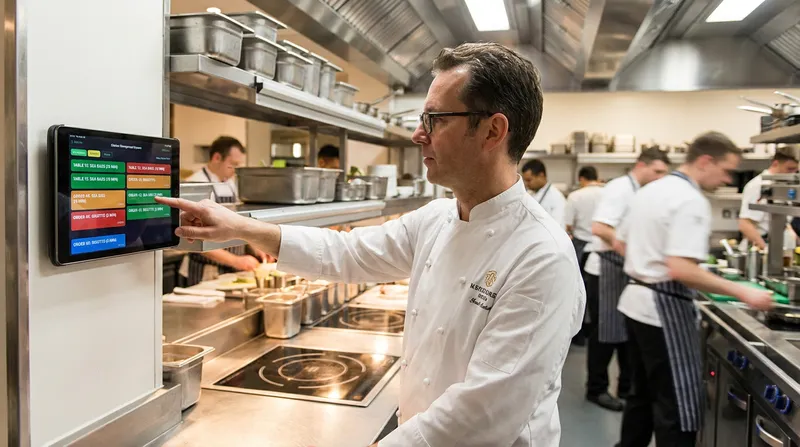
The real struggle for operators across New Zealand is nailing the exact configuration rules needed to keep tickets moving. We are talking about proper routing, meal pacing, course firing controls, and clear bump bar procedures. Without these critical settings, your staff will just stare at a digital version of the same chaotic paper ticket system.
Whether you run a bustling cafe in Auckland or a mobile food truck in Wellington, understanding how to configure your digital order flow is the secret to scaling your business. In this comprehensive guide, we will walk you through the exact steps to optimise your kitchen order display system and eliminate operational chaos forever.
Table of Contents
- What is a Kitchen Display System (KDS)?
- The Hidden Costs of Paper Tickets
- How to Configure KDS Routing Rules
- POS and KDS Integration Setup
- Food Truck KDS Survival Guide
- The Service Display System: KDS for Wellness
- Bump Bar Procedures in Under 10 Minutes
- Best Practices for Kitchen Efficiency
- Conclusion
- Frequently Asked Questions
What is a Kitchen Display System (KDS)?
A kitchen display system is a network of digital screens that replaces traditional paper dockets in the back of house. Instead of relying on a noisy dot-matrix printer that constantly runs out of paper, orders are sent directly from your point of sale (POS) to the appropriate preparation stations.
This technology creates a paperless kitchen environment, which is rapidly becoming the standard for modern hospitality venues in New Zealand. However, a KDS is much more than just a digital monitor.
It is the central nervous system of your business. It tracks preparation times, organises tickets by priority, manages course firing, and provides critical data on how fast your team is operating.
The Hidden Costs of Paper Tickets (and the Benefits of Going Paperless in NZ)
Why are so many businesses adopting a paperless kitchen NZ strategy? It comes down to speed, accuracy, and local compliance. Paper tickets work fine when a kitchen is quiet, but the system breaks down the moment volume climbs.
Tickets get lost, handwriting is misread, and paper gets ruined by grease and heat. According to Delivety, thermal paper and kitchen printers can quietly chew through thousands of dollars a year, especially in high-volume venues. Every minute spent deciphering a handwritten note is a minute taken away from food preparation.
Furthermore, digital record-keeping is vital for local regulatory compliance. Guidelines highlighted by Safe Food Pro show that navigating the NZ Food Act 2014 requires strict hazard management and traceability. A digital KDS hospitality NZ setup integrates seamlessly with modern digital workflows, ensuring you remain audit-ready at all times.
If you are still on the fence about making the digital leap, check out our detailed breakdown on KDS vs Paper Tickets: Is a KDS Worth the ROI in NZ?.
How to Configure KDS Routing Rules (The Secret to Speed)
Your KDS routing rules dictate exactly where an order goes the second it is placed. If you send every single item to every single screen in the kitchen, you will overwhelm your staff with irrelevant information.
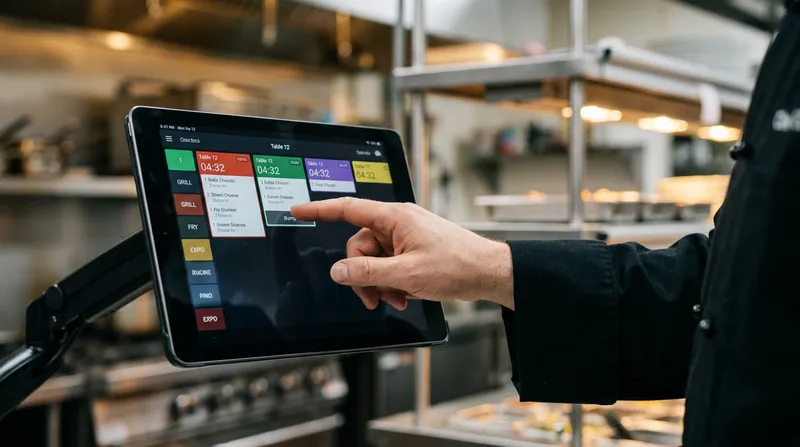
Here is how to configure your routing for maximum efficiency:
1. Station-Specific Routing
The most fundamental rule of KDS configuration is separating items by their designated prep station. You must configure your POS backend so that steaks and burgers route exclusively to the grill screen, while salads and desserts route to the cold prep screen. The expediter screen (the final checkpoint before food goes to the customer) should be the only display that sees the entire consolidated order.
2. Load Balancing for High Volume
During peak hours, a smart kitchen monitor system can distribute orders across multiple identical stations. If you have two fryers operating, your KDS can be configured to alternate tickets between Fryer Station A and Fryer Station B. This prevents one chef from getting buried under a mountain of tickets while the other stands idle.
3. Course Firing Controls
This is where meal pacing comes into play. Instead of the kitchen receiving the appetisers and main courses at the exact same time, course firing controls allow the system to hold the main dishes back. The POS will only send the main course ticket to the grill once the appetisers have been marked as complete (or "bumped") from the prep station. This ensures food arrives at the table hot and perfectly timed.
POS and KDS Integration Setup: Creating a Seamless Flow
A kitchen screen system setup is only as strong as the POS software feeding it data. Your POS and KDS integration must be instantaneous and completely automated.
When a customer orders via a QR code at their table, the Lazygrid POS system automatically categorises the items, applies any custom modifiers, and pushes the data directly to the KDS. There is no manual entry required by your floor staff. This seamless flow is a major factor when you want to improve table turnover rate in NZ.
Lazygrid's native KDS features are designed specifically to eliminate confusion. With colour-coded urgency timers, allergen warning highlights, and multi-station routing built right in, your kitchen team knows exactly what to prioritise. Ensure your system uses standard, reliable network connectivity. Lazygrid supports commercial-grade EPSON and Xprinter thermal printers as physical backups, but the primary communication between the iPad POS and the kitchen screen happens securely over your local network.
Food Truck KDS Survival Guide: Offline Resilience and Space-Saving
Most KDS advice assumes you have a massive commercial kitchen with plenty of wall space. But what if you operate a food truck in Wellington with limited counter space and spotty internet connections?
Compact Hardware and Pricing
You do not need bulky, expensive proprietary screens. An iPad POS system doubles perfectly as a KDS. You can mount a standard iPad mini on a swivel arm to save precious counter space while still giving your cooks a crystal-clear view of incoming orders. If you are evaluating costs, Lazygrid offers straightforward hardware packages (Starter at $999, Standard at $1,999 GST exclusive), giving cost-conscious operators a concrete entry point.
Offline Mode Resilience
Food trucks often operate at festivals or remote locations where the cellular network drops out. Your POS and KDS must have an offline mode that allows local network communication to continue even if the wider internet goes down. As long as your local router has power, the POS will continue to send tickets to the kitchen screen.
Consolidated Split-Screens
Instead of having separate prep and expediter screens, food trucks should utilise a single split-screen view. This allows the cook to see what needs to be prepared while simultaneously managing the final assembly of the order.
For more insights on optimising mobile setups, read our comparison on Square POS vs EFTPOS for NZ Food Trucks.
The Service Display System: KDS for Beauty and Massage Shops
Here is a unique bonus angle that most business owners completely miss: a KDS is not just for food service. We call it a "Service Display System" when adapted for beauty salons, massage shops, and wellness centres.
When a client checks in at the front desk, the receptionist taps the POS. A screen mounted in the staff breakroom (acting as the KDS) immediately displays the client's name, their requested service, and their assigned therapist.
- Queue Management: Therapists can see exactly who is waiting in the lobby and for how long, colour-coded by wait time.
- Room Readiness: Staff can "bump" a ticket on their iPad to signal to the front desk that a massage room has been cleaned and is ready for the next client.
This setup utilises the exact same routing rules as a restaurant kitchen automation system but applies them to human services. It completely eliminates the need for receptionists to abandon the front desk to search for staff down the hallway.
The Human Element: Bump Bar Procedures in Under 10 Minutes
The best technology in the world will fail if your staff do not know how to use it properly. High turnover in the hospitality sector means you need a training framework that takes minutes to teach, not days.
1. The Colour Code Rule
Train new staff to react to colours before they even read the text. Green means a new order, yellow means the ticket is approaching its target time limit, and red means the order is critically delayed. This visual shorthand keeps the kitchen moving instinctively.
2. The "Bump When Done" Protocol
The most common mistake in digital kitchens is staff bumping tickets before the food is actually plated, just to keep their screen looking clear. You must enforce a strict rule: a cook only touches the bump bar when the plate physically leaves their station. Premature bumping ruins your analytics and confuses the expediter.
3. The Undo Function
Mistakes happen during a rush. Show every new hire exactly how to recall an accidentally bumped ticket within their first five minutes of training. Knowing they can easily fix a mistake reduces technology anxiety for older staff members.
Best Practices for Kitchen Efficiency and Reduced Ticket Times
To truly reduce restaurant ticket times, you must leverage the data your KDS provides. A digital system is not just a display; it is a real-time analytics engine.
Industry data from Delivety suggests that implementing a well-configured KDS can shave 20 to 30 percent off average ticket times, which significantly boosts table turns and delivery throughput.
Furthermore, insights from Restaurant365 highlight that advanced kitchen display systems allow for dynamic ticket organisation. This means the system can automatically prioritise time-sensitive orders or VIP customers to streamline preparation.
Analyse Historical Prep Times
Use the Lazygrid reporting and analytics dashboard to see which dishes consistently cause delays. If your data shows that a specific loaded burger takes 15 minutes to prepare while everything else takes 8 minutes, you have a menu design problem, not a staff problem. You can then adjust the recipe or the prep method to bring that item in line with the rest of the menu.
Synchronise Third-Party and Online Orders
If you run a busy quick-service restaurant, your online ordering system must inject tickets directly into the KDS queue based on the requested pickup time, not just the time the order was placed.
While some operators struggle with aggregator platforms (like UberEats) that do not natively integrate with all KDS setups, Lazygrid's native online ordering flow provides a much cleaner solution. It avoids the complexity of third-party integrations and prevents the kitchen from cooking a 6:00 PM pickup order at 4:30 PM. Learn more about optimising this specific workflow in our guide to the best QSR POS system NZ.
Conclusion
Configuring your kitchen display system for maximum efficiency is about much more than hanging a shiny screen on the wall. By mastering KDS routing rules, implementing strict bump bar procedures, and utilising smart course firing controls, you can completely transform your back-of-house operations.
Whether you are running a high-volume Auckland restaurant, a mobile food truck, or a busy massage clinic, the right digital setup will reduce wait times, improve staff communication, and eliminate paper chaos forever.
Ready to see how Lazygrid KDS works in a real kitchen? Start a free trial or book a 15-minute demo with our Wellington-based team at Lazygrid POS to streamline your operations and scale your business with confidence.
Frequently Asked Questions
What is the difference between an expediter screen and a prep station screen?
A prep station screen only shows the specific items that a particular chef needs to cook (for example, only the deep-fried items). This keeps their focus narrow and efficient. An expediter screen, however, shows the entire consolidated order for a table. This allows the head chef or food runner to ensure all parts of the meal are ready, properly paced, and plated correctly before sending the complete order out to the customer.
How do I configure KDS routing rules for a food truck?
Keep your routing rules incredibly simple to maximise your limited space. Route all hot food items to a single iPad mounted near the cooking equipment, and route all beverage or cold items to the front counter display. Use colour-coded timers to manage priority in your tight space, and rely on split-screen views to see both prep and expediting tasks on a single monitor.
Can a beauty or massage shop use a kitchen display system?
Absolutely. While traditionally used in hospitality, a KDS can be adapted into a "Service Display System" for wellness businesses. Salons and spas can use it to track client check-ins, monitor wait times in the lobby via colour-coded timers, and silently alert therapists in the breakroom when their next appointment has arrived or when a room is clean.
What happens to my KDS orders if the internet goes down?
If you are using a robust, modern system like Lazygrid POS, the main terminal and the KDS communicate securely over your local network (via WiFi or Ethernet). As long as your local router has physical power, your screens will continue to receive and route orders through an offline mode, even if your connection to the outside internet is completely severed.
How long does it take to train staff on bump bar procedures?
With an intuitive iPad-based interface, basic training takes less than 10 minutes. You should focus entirely on teaching the colour-coding system (green for new, yellow for warning, red for late), the strict "bump only when plated" rule to maintain accurate analytics, and how to recall an accidentally bumped ticket so staff do not panic during a rush.